
LiveNCTS6 transit declarations are now live — alongside CDS, GB ENS, EU ICS2, GB GVMS and French ELO
Register
Platform · Declaration workspace

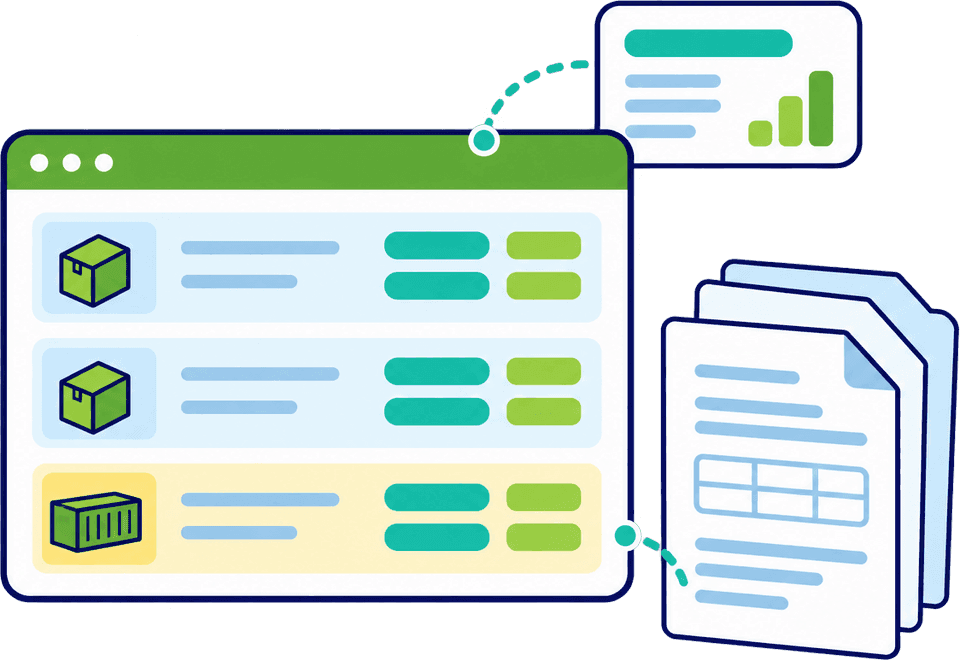
A Clearer Workspace for Preparing Customs Declarations

Move from shipment information to a submitted entry in one workspace built around the declaration you are making. Guided steps, reusable data and item-level editing cut the time each filing takes, and everything stays visible to your team. You file directly, and our team backs you up. Every service, from CDS to ENS to transit, uses the same familiar layout.

  • Guided workflow
  • Shared item information
  • Live validation
  • Response tracking
  • Work through the declaration step by stepSix guided steps ask only for what the declaration needs, with saved parties filled in.
  • Update many goods items at onceSet shared details once and apply them to every checked goods item. Item prices stay as entered.
  • Review, then submit when completeAnything missing is listed by section. Your team completes it, then submits the declaration.

In a nutshell

The declaration workspace is where your customs filing happens. Information from documents, spreadsheets, saved records or earlier entries is brought together in one place and completed for the filing you are making. A guided order of work, reusable data and item-level editing mean your team spends its time on the goods that need attention, not on retyping what is already known.

Filing in-house on CDUK means you see every declaration from first draft to HMRC response, with no third party in between. Your team prepares each declaration, checks it with built-in validation and submits it directly, with our UK-based team behind you for onboarding, training and support. Each service, from CDS to ENS to transit, gets a workspace shaped around its own data requirements, so parties, goods, documents and the HMRC response all sit in one screen flow.

Choose your starting point

Not every job arrives in the same form.

One customer sends a spreadsheet, another sends invoices and a packing list, and a regular lane is best started from a previous declaration. CDUK gives you a starting point for each, so your team never begins from a blank form. Every route ends in the same workspace, so the checks, history and response tracking are identical whichever way a declaration started.

Start from the documents you receive

  • Document processing
  • Draft for your review

Where the information sits in supplier or customer documents, AI document processing extracts it into a reviewable draft, with no per-document fee. Differences between documents are resolved before the draft is created, so your team starts from structured data instead of re-keying invoices. Repeat suppliers are the fastest to process, because their layouts are familiar.

  • Review extracted parties, shipment details and goods lines in one view
  • Resolve conflicts and repeated goods before the draft is built
  • Finish the filing-specific requirements without leaving the workspace

Available on supported declaration types. Your team reviews every draft.

See document processing
A guided process

A logical order, without assembling the entry from memory.

A structured workflow takes the operator through parties, shipment details, goods and supporting information in a sensible sequence. Large declarations become manageable, because nobody has to hold the whole entry in their head. New colleagues become productive faster, and a colleague can pick up a half-finished entry and see exactly what is left.

Typical preparation path
  • DocumentsInvoices, packing lists, transport documents
  • SpreadsheetStructured goods lines
  • Previous entryA suitable earlier declaration
  1. Step 1: Parties

    Identify the businesses involved, picking saved parties so the details are right first time. This is also where the roles of consignor, consignee and declarant are set.

  2. Step 2: Shipment details

    Describe the overall movement once: the route, the references and the details that apply to the whole entry. Header details flow down to every goods line, so items cannot contradict each other.

  3. Step 3: Goods

    Review each goods line, apply shared information in one action and handle the items that differ. Commodity lookup and requirements mapping sit alongside each line, so the code, value, origin and evidence are completed together.

  4. Step 4: Supporting information

    Attach the invoices, packing lists and references that support the entry, so evidence stays with the filing. A reviewer or colleague can open the same documents later.

  5. Step 5: Review and submit

    Clear any validation messages, check the whole declaration and submit it directly to HMRC. You see the complete entry once before it goes.

Screens follow the service and declaration type. We can walk your team through the exact filing you make.

Multi-item declarations

Three levels of information, three ways to approach them.

Many entries mix information that applies to the whole declaration, information shared by multiple items and information unique to one product. In Customs Declaration Service (CDS) declarations, shared item information is applied across selected goods lines and commodity requirements are grouped, so common responses are completed together. Your reviewer can follow a large entry level by level.

Level of informationHow the workspace helpsWhere you stay in control
Shipment-wideEnter the details of the overall movement onceYou check the header, which governs every item beneath it
Shared by selected goodsApply common answers to the items that share themYou choose which items share the answer
Specific to one itemOpen the item and complete its code, value, origin or evidenceYou can inspect and change any single item

You can always open an individual item where treatment differs.

Illustrative examples

What review looks like inside the workspace.

Shared and individual

Complete what is shared once. Spend time on what differs.

Take a three-line entry. Two lines share an answer, so you apply it to both together. The third line has a different value, so you review it separately. On a long entry, that saves a great deal of keying, and your operator sees which lines are grouped and which stand alone.

  • Select the items that share the information
  • Apply the shared answer once, then check it
  • Open the exception and complete it on its own
Validation message

A message that says where to look, and why.

Real-time validation spots missing or inconsistent data while the declaration is being prepared, not after it reaches HMRC. Each message names the field and explains the gap, so your team corrects it straight away and the entry is clean by the final review.

  • Jump to the part of the entry the message names
  • Correct the source information once
  • Re-run the checks before you submit
Views, documents and records

Fit the workspace to the person and the filing.

Experienced operators and newer colleagues need different amounts of the screen, and every entry needs its evidence close at hand. The workspace flexes to both, and keeps a clear record of what was filed.

  • View options

    For supported services, streamlined views let experienced operators move quickly through familiar work, while fuller views open up additional fields when an entry needs them. One workspace serves both the daily regular and the occasional complex filing.

  • Supporting documents close to the entry

    Attach the relevant invoices, packing lists and supporting records to the declaration itself. When a customer asks a question or a colleague picks up the entry, everything needed is already there, with no searching through inboxes and shared drives.

  • Part of your record-keeping

    Filing history, attached documents and customs responses live together in your account, giving you a transparent record of every declaration your team has made. It is there for internal reviews, customer questions and your wider record-keeping, without anyone assembling a file by hand.

After submission

Stay with the filing through its stages.

Submission hands the entry to the customs system, and the work continues until the goods are released. The workspace brings the response from the relevant customs system back to you with notifications, so your team works from live status instead of chasing for news.

  1. Step 1: Submit the reviewed declaration

    Confirm the completed filing and submit it directly to HMRC. Nothing is sent without your team's decision. A named user submits, and the submission is recorded in the declaration history.

  2. Step 2: Read the response

    Notifications tell you whether an entry is accepted, needs further information or awaits a release decision. Each outcome is shown against the declaration it belongs to, so the right person picks it up straight away.

  3. Step 3: Take the next step

    Supply requested information, or tell the people moving the goods, straight from the same workspace. Fast answers to customs queries mean goods spend less time waiting.

  4. Step 4: Amend or cancel where available

    Where the status and workflow allow it, amend or cancel from the declaration itself, with the change recorded in its history. Corrections are made on the same record, so there is no separate paperwork to keep in step.

Frequently Asked Questions

Questions about the workspace.

Can experienced users work in a more compact view?

Yes. Streamlined views are available in supported modules, so experienced users can move through familiar entries quickly while newer colleagues keep the fuller guided view. Switching views does not change the declaration, only how much of it you see at once. Tell us the filing type your team uses and we will show you the right interface.

Can I update several goods items together?

Yes. CDS bulk editing applies common information across the items you select. You review the selection, apply the change and open any individual item whose treatment differs. The change is visible on every selected line straight away. See GB CDS import and export.

Can we begin with an existing declaration?

Yes. Cloning turns a previous declaration into the starting point for a new one, and you update the current shipment details before submission. The earlier entry stays untouched in your history. See templates and data reuse.

Do all services work the same way in the workspace?

Each service has its own data requirements, and the interface follows them. A CDS import declaration, a GB Entry Summary Declaration (ENS) and a transit declaration ask for different information, so the workspace is shaped around each. All of them sit on one CDUK account and feel familiar.

Can colleagues work on the same declaration?

Yes. Teams can share work through workflow and team collaboration, with history showing who did what. Your account can be set up with the users your team needs, so preparation and checking happen where you want them to. Tell us how your team divides the work and we will show you the best set-up. See workflow and collaboration.

Who submits the declaration?

Your team does, directly to HMRC. A named person reviews and confirms each filing, with the workspace and built-in checks supporting preparation. There is no intermediary between your team and the customs system, and our team is behind you throughout.

Can document processing feed straight into the workspace?

Yes, on supported declaration types. Extracted information is reviewed first, then becomes a draft you complete in the workspace, with no per-document fee. Your operator corrects anything the draft got wrong once, and the clean data carries through the rest of the entry. See AI document processing.

Bring an Entry Your Team Finds Time-Consuming

Share a representative declaration and we will show how the workspace handles it, from starting point to HMRC response. Or register now: accounts are activated instantly, with pay as you go pricing, no monthly fee and no minimum volume. Our UK-based team will walk your operators through it and answer questions on your own filings.